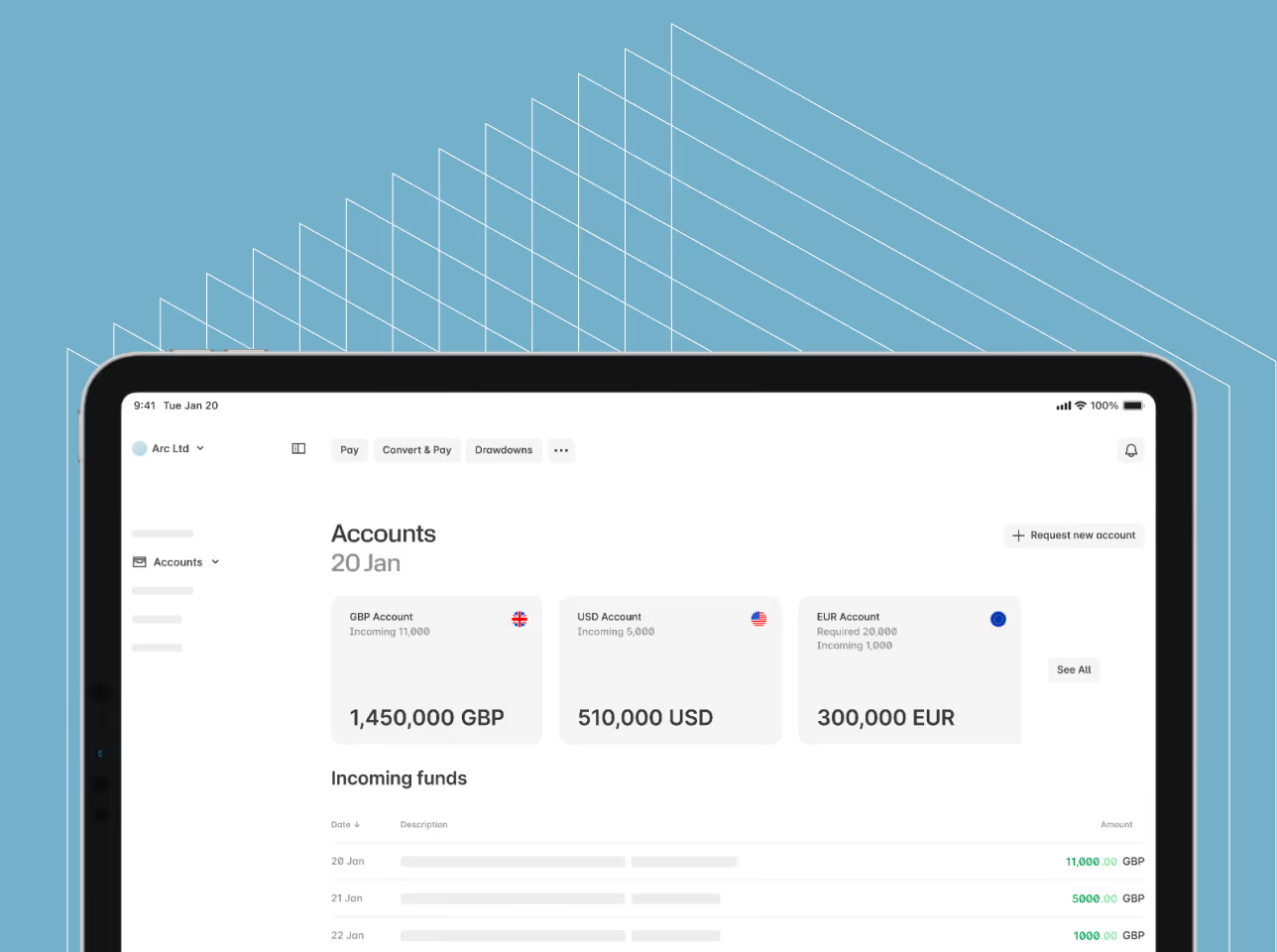

By creating a secure, real-time sync between Ebury multi-currency accounts and Quickbooks Online, we have eliminated the need to download and manually import CSV or MT940 statement files. Transactions and balances can now flow automatically, enabling seamless, automated reconciliation, drastically reducing human entry mistakes, and freeing up your finance teams - known as bank feeds integration
This article walks you through connecting your Ebury account to QuickBooks Online so your Ebury transactions flow automatically into your QuickBooks bank feed. Once connected, QuickBooks will pull in your Ebury account balances and transactions on an ongoing basis, so you can review and categorize them alongside your other bank accounts.
Before you start
- You'll need an active Ebury account with online banking access (the same username and password you use to log in at Ebury).
- You'll need admin access to your QuickBooks Online company.
- Have your Ebury account details handy (account name/currency) so you can match them to the right accounts in QuickBooks.
- The connection between Ebury and Quickbooks Online is only available for Canadian and US companies
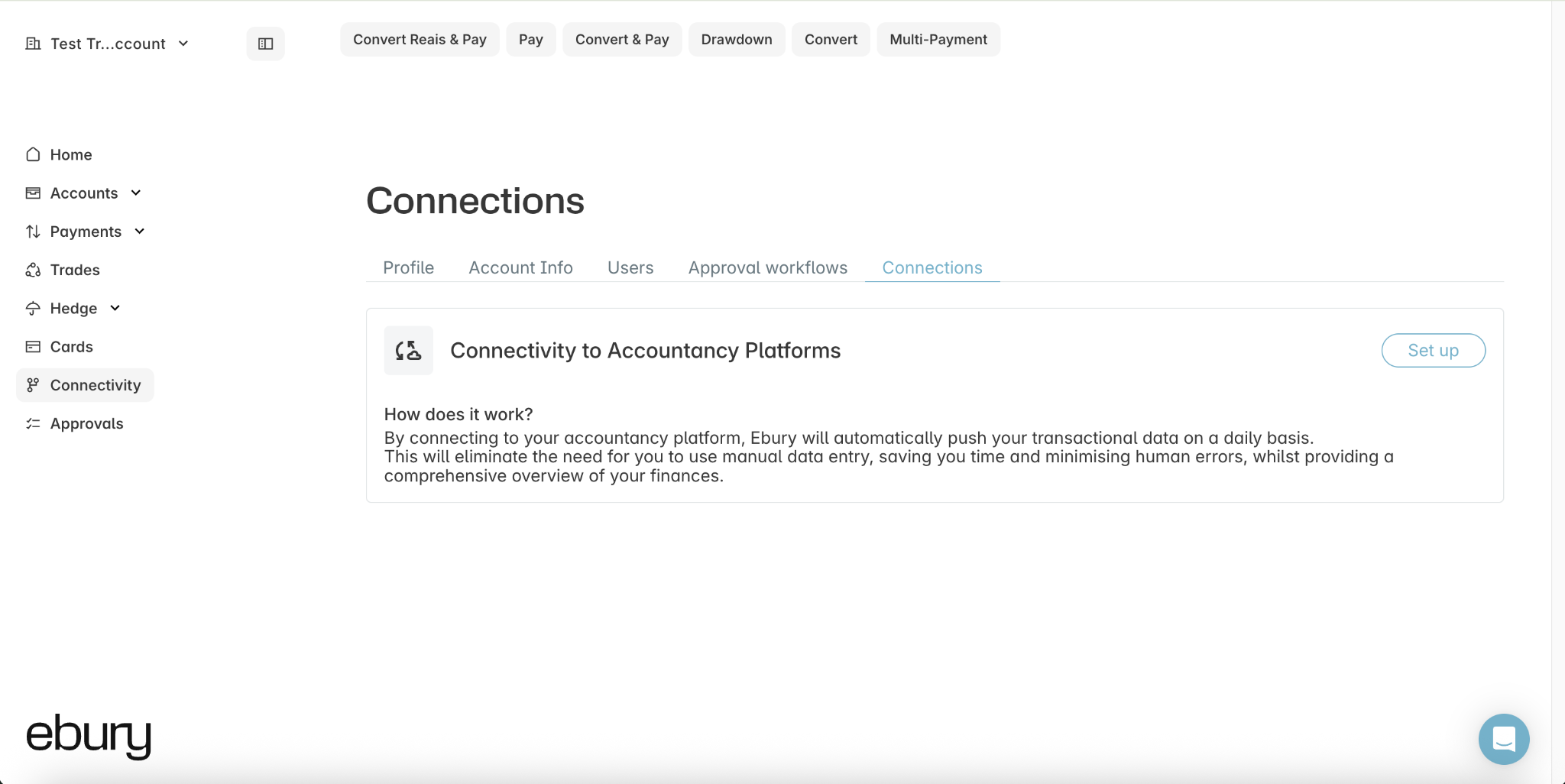
Step 1: Go to the Connectivity section in Ebury Web
Log in to Ebury Web and select Connectivity from the left-hand menu. Under Connectivity to Accountancy Platforms, select Set up.
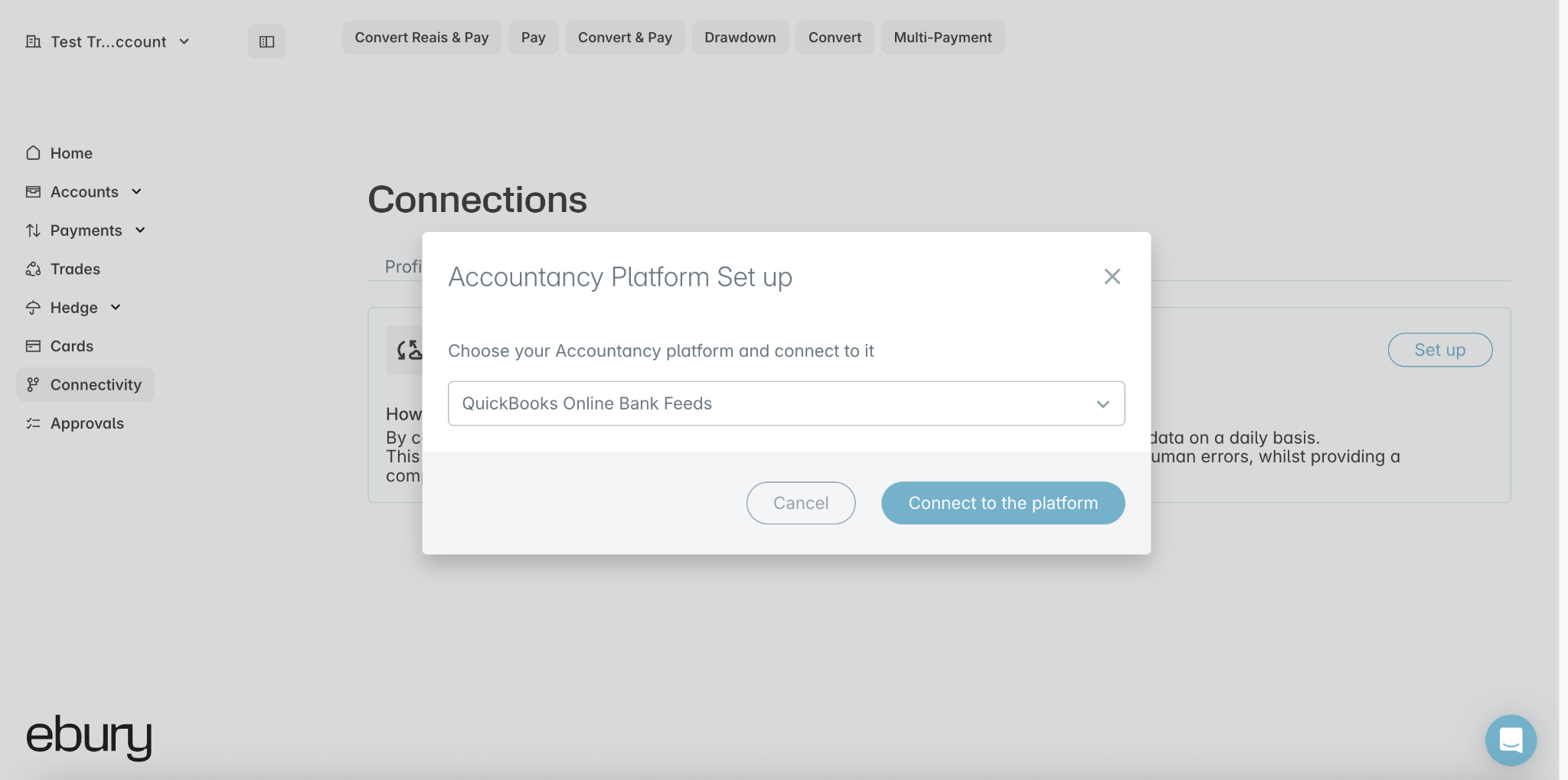
Step 2: Choose QuickBooks Online and connect
In the Accountancy Platform Set up window, choose QuickBooks Online Bank Feeds from the dropdown, then select Connect to the platform.
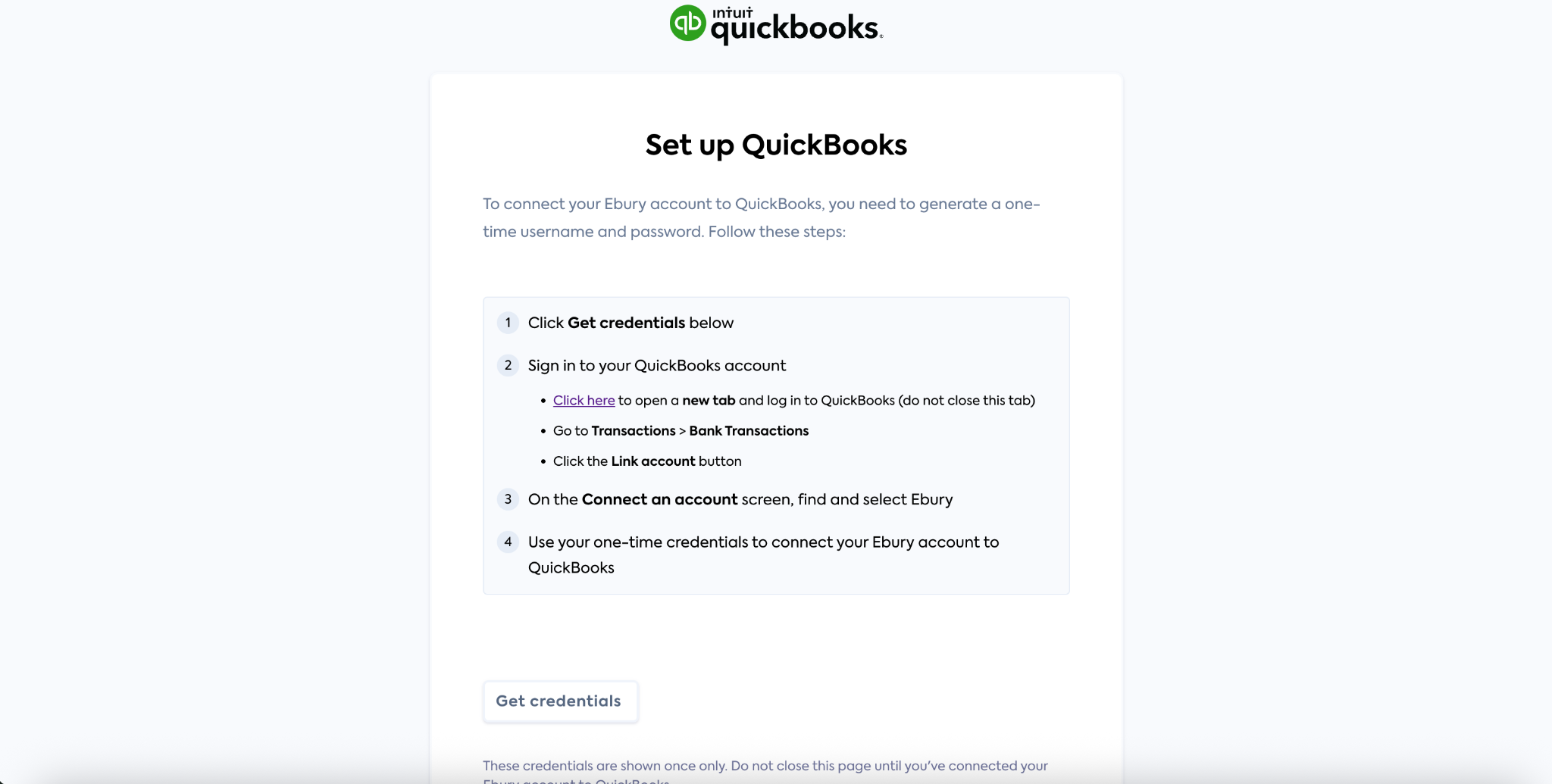
Step 3: Get your one-time credentials
You'll be redirected to a new tab, powered by Codat, to set up the connection. Select Get credentials — this generates a one-time username and password you'll use to link your Ebury account to QuickBooks. Keep this tab open; these credentials are shown only once.
Step 4: Start the connection from QuickBooks Online
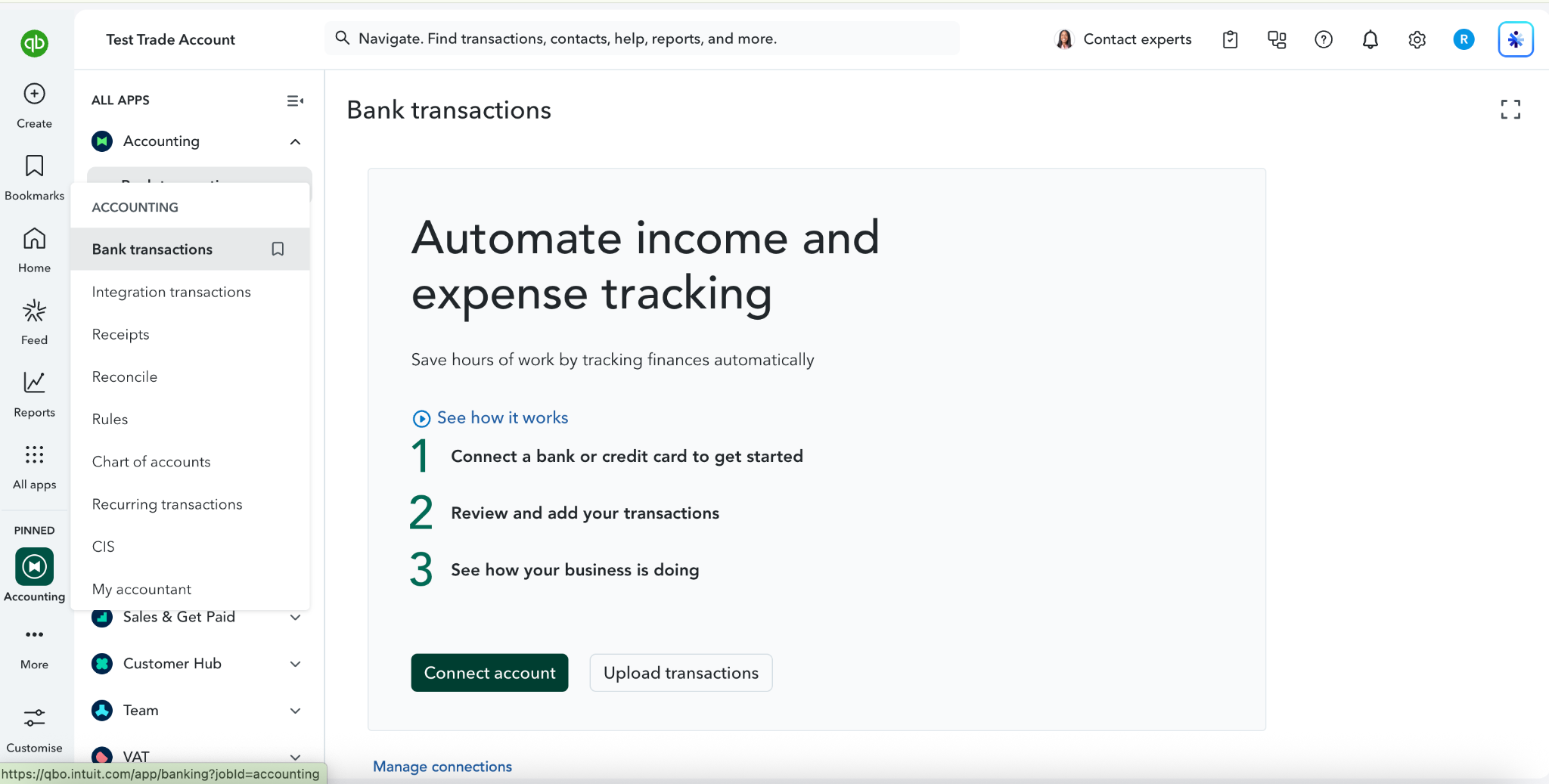
In a separate tab, log in to QuickBooks Online. From the left-hand menu, select Accounting, then Bank Transactions, then select Connect account.
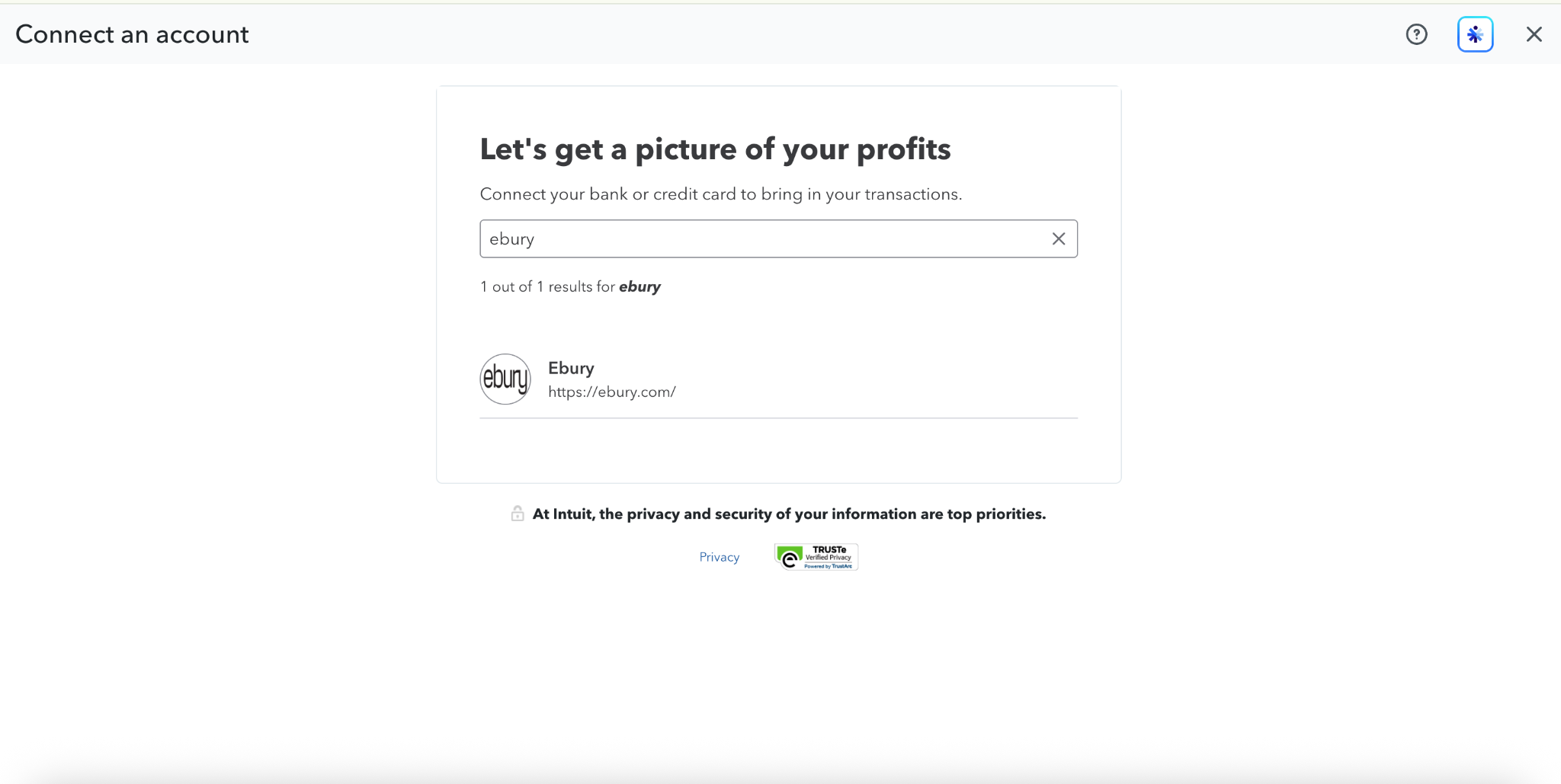
Step 5: Search for and select Ebury
A window will pop up asking you to connect your bank or credit card. Search for “Ebury” and select it from the results.
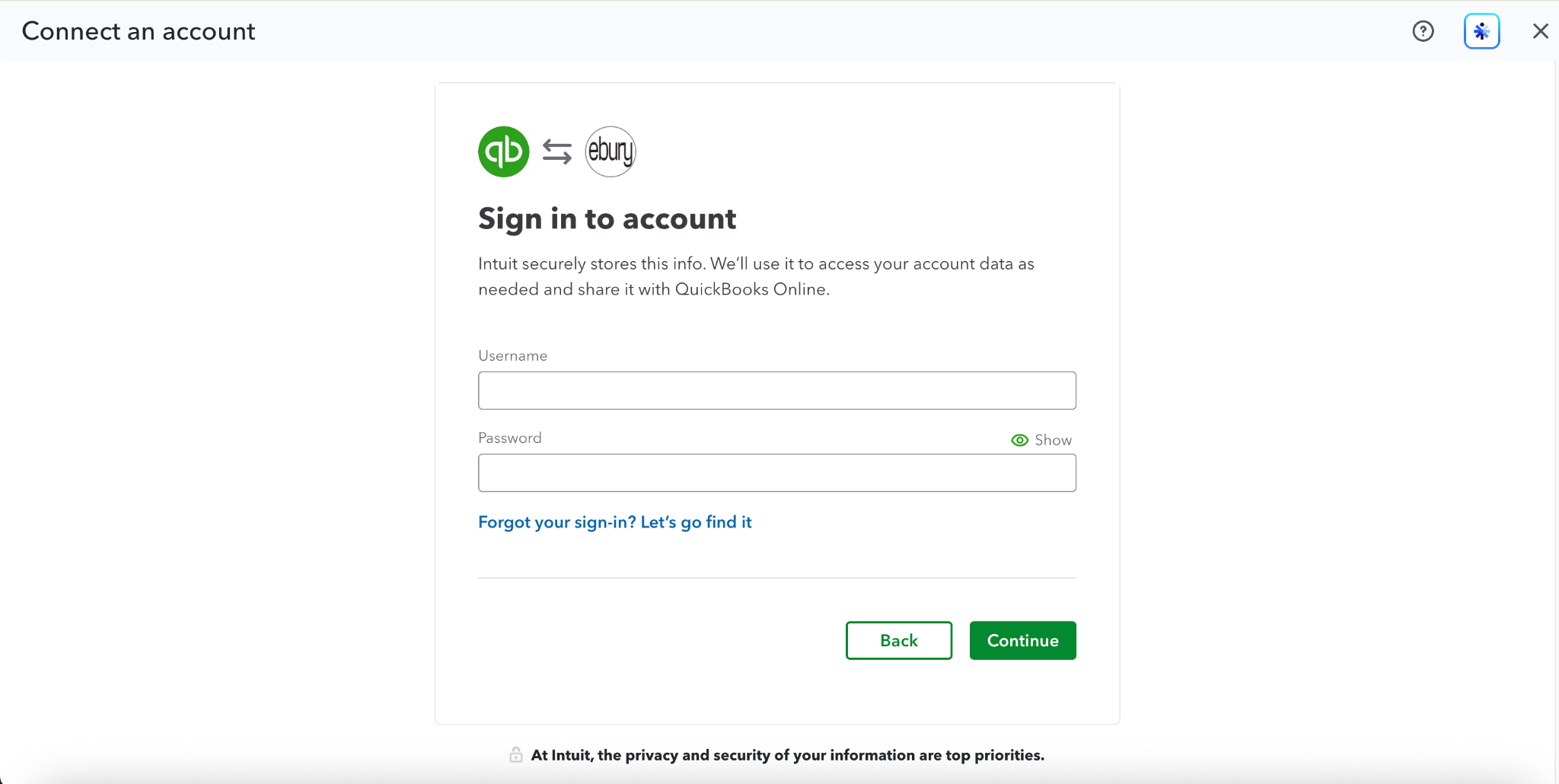
Step 6: Sign in with your one-time credentials
On the sign-in screen, enter the one-time username and password you generated in Step 3, then select Continue.
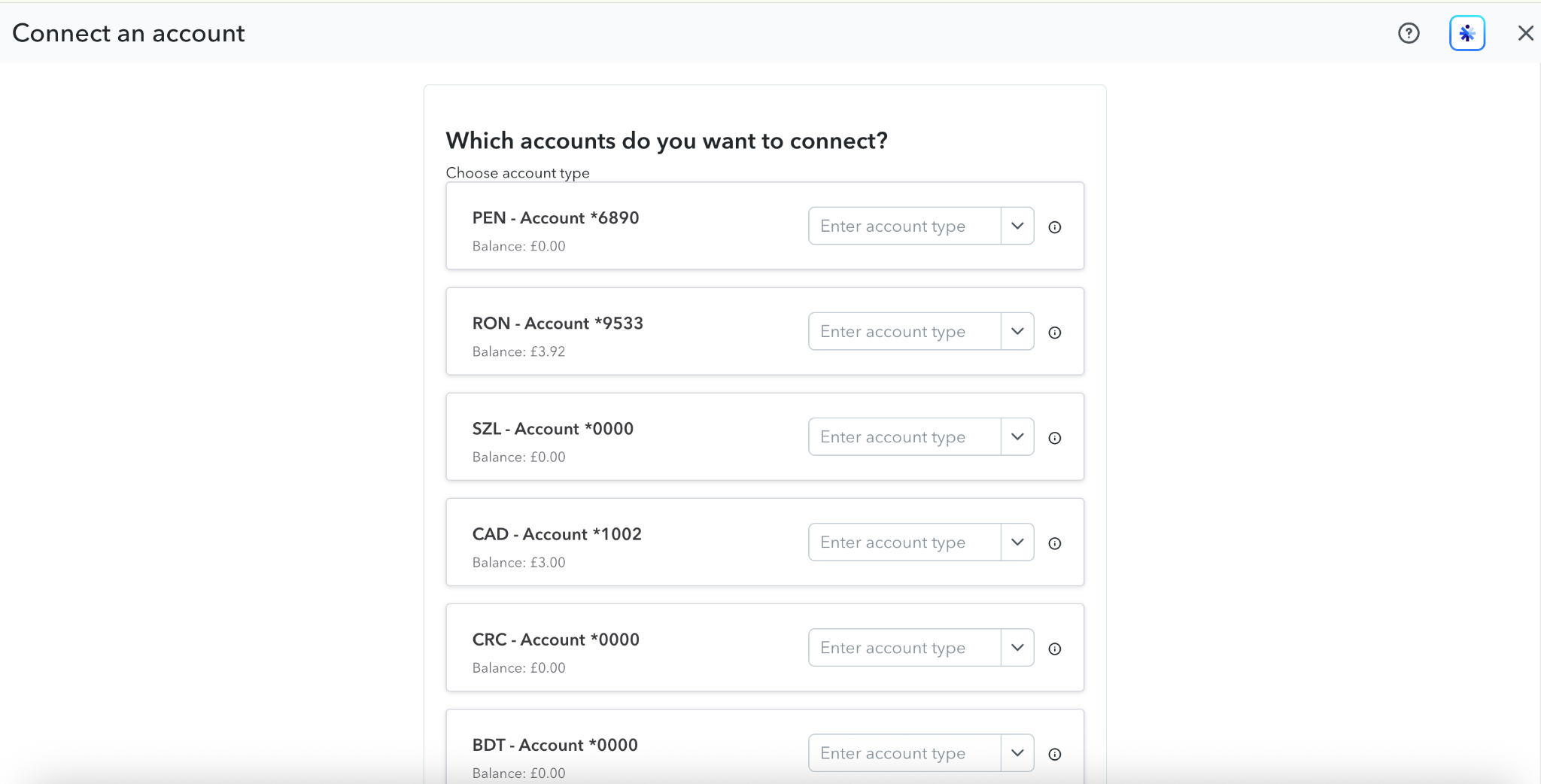
Step 7: Choose which Ebury accounts to connect
Select which of your Ebury account(s) should be connected to QuickBooks Online. If you hold accounts in multiple currencies, choose the account type for each one you want to bring in.
Keeping your feed up to date
Once connected, QuickBooks Online will automatically refresh your Ebury feed on a regular schedule. If you ever need new transactions immediately, go to Bank Transactions, select the Ebury account, and choose Update.
Troubleshooting
I can't find Ebury in the search results
Double-check the spelling and try searching again. If Ebury still doesn't appear, the connector may be temporarily unavailable — try again later or contact Ebury support.
My one-time credentials aren't working
One-time credentials are shown only once and are tied to that specific setup session. If you closed the Codat tab before finishing, go back to Ebury Web > Connectivity and start the setup again to generate a new set.
I don't see all my accounts
Only the accounts you select in Step 7 will be connected. If you need to add more accounts later, you can repeat this process from Ebury Web > Connectivity.
Discover other software integrations