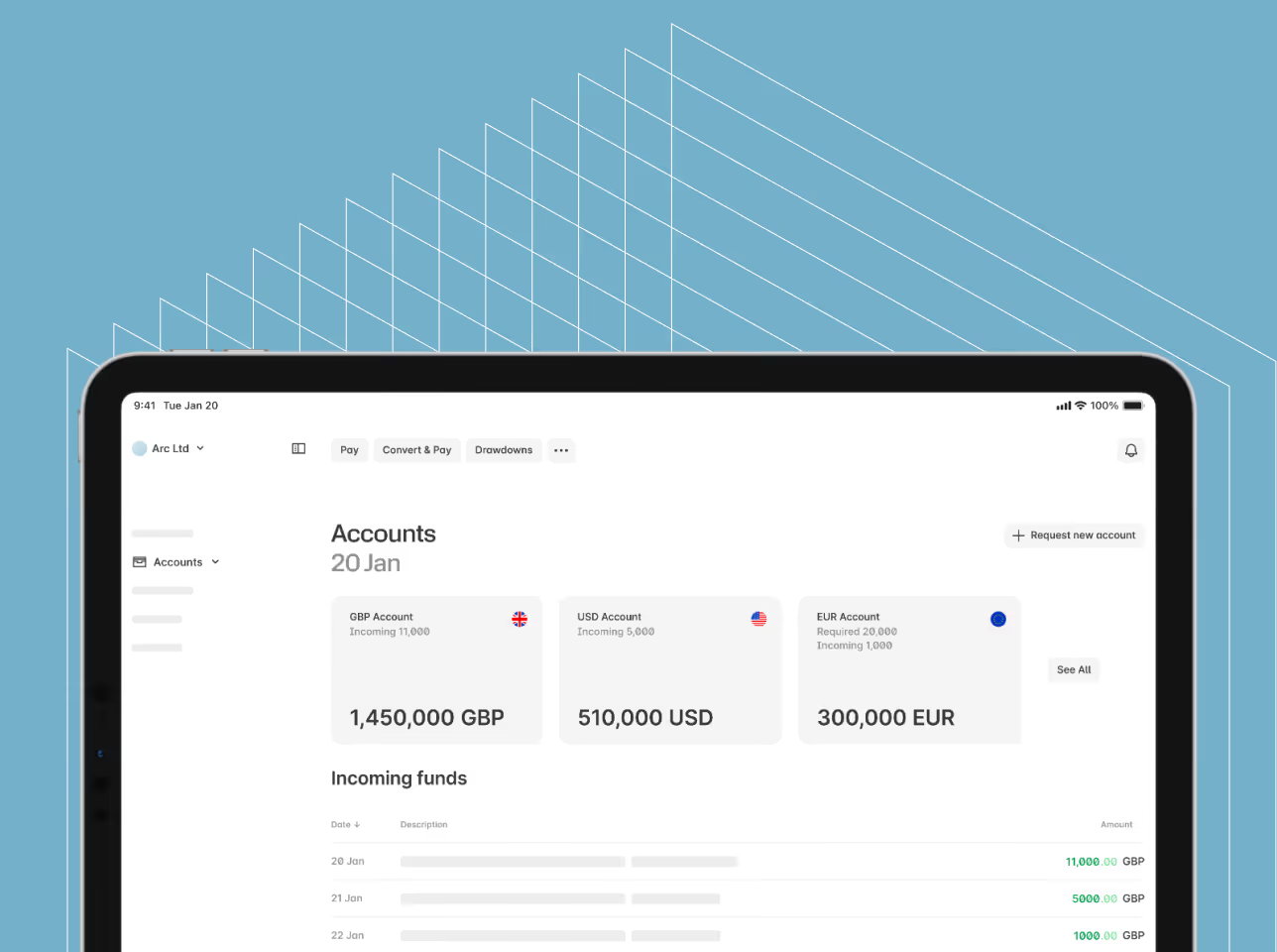
4-eyes Authorisation and Contact Permissions on Ebury Online
On Ebury Online (EBO), you control what access and management rights your contacts have, ensuring the smooth running of your account.
If you need multiple levels of approval in your business, the 4-eyes authorisation setting allows you to select a second contact on your account to approve payments, providing security for you and your clients and reducing the risk of errors occurring.
How this works
1. Admin permissions
The online team at Ebury gives the primary contact admin permissions to use EBO, which includes the ability to manage the activation and permissions of the secondary contacts.
2. Add users to your account
You decide the contacts you want on your account at this point, but if you need additional users added, you can do this anytime.
3. Activate 4-eyes under settings
By activating 4-eyes in 'settings', every payment that is allocated will have to be approved by a second contact before it can be released.
Permissions
The primary contact can enable the following permissions for secondary contacts:
New Trade: Ability to check rates and book a spot trade on EBO.
Manage Beneficiaries: Add and manage beneficiaries on EBO.
Manage Permissions: Change permissions for contacts on your account.
Beneficiary Groups: Add and edit beneficiary groups to manage large lists of beneficiaries or groups for payroll payments.
Same Currency Payments: Make the same currency payments to beneficiaries.
Manage Online Access: The primary contact can send EBO activation emails to secondary contacts on the account.
Manage Payments: Add a payment to a spot trade or drawdown.
Multi-payment: Book a bulk payment (payment to more than one beneficiary) through a file upload.
Authorise Payments: Authorise every payment that goes through. This is '4-eyes' authorisation.
Drawdown: Drawdown from window forwards which were booked through your dealer.
How to set it up
1. Set admin user
When setting up EBO with the online team, choose your admin user, the primary contact, with manage permissions enabled.
2. Enable 4-eyes
Go to 'Settings' on the account page, select '4-eyes' and save.
3. Activate your accounts
Go to 'Accounts' and 'Users' and select 'Send activation email' to ensure your contacts are activated.
4. Manage permissions
Once activated, select 'Manage permissions'.
5. Select Authorise payments
Choose 'Authorise Payments' and save settings. This is the 4-eyes setting and they can now authorise payments once you have booked a trade.
Using 4-eyes Authorisation
1. Book a trade and assign payment
Book a trade and assign payment to the relevant beneficiary.
2. 4-eyes contact logs in
The contact with permission to authorise payments will receive notification and logs in to EBO.
3. Review trade
On the dashboard, they can review payments pending authorisation.
4. Approve payment
Select 'Manage payment' and choose to approve or decline the payment.
5. Payment sent
With approval, the payment will be sent on the value date of the trade.
Contact us
+44 (0) 20 3872 6670
info@ebury.com
ebury.com
Ebury Partners UK Ltd is authorised and regulated by the Financial Conduct Authority as an Electronic Money Institution. Reference number: 900797. Ebury Partners UK Ltd is registered with the Information Commissioners Office, with registration number: ZA345828. Ebury Partners Markets Ltd is authorised and regulated by the Financial Conduct Authority as an Investment Firm to provide advice and execute trades in MiFID derivative products. Reference number: 784063. EBURY and EBURY What Borders? are trademarks.